Quick Answer
Start with Instant ADS, a Dynamic response curve and graphics tuned for FPS or visibility. For a concrete MW4 DMZ settings starting point, JoeWo uses horizontal/vertical sensitivity 1.2/1.2, an ADS multiplier of 0.85 and left-stick dead zones of 1/65 on his 12-bit sticks. Set these under Controller, then choose your graphics priorities under Graphics.
Which MW4 DMZ best settings should you use for controller aiming?
Try JoeWo's 1.2/1.2 sensitivity if you want to follow his controller setup, but keep its 12-bit-stick context in mind. Apathy uses 1.6 instead and turns controller vibration off.
For your left stick, JoeWo uses minimum 1 and maximum 65; Apathy uses minimum 1 and maximum 60, with 69 as another option. JoeWo's lower maximum is intended to reach full sprint input without pushing the stick to its outer edge.
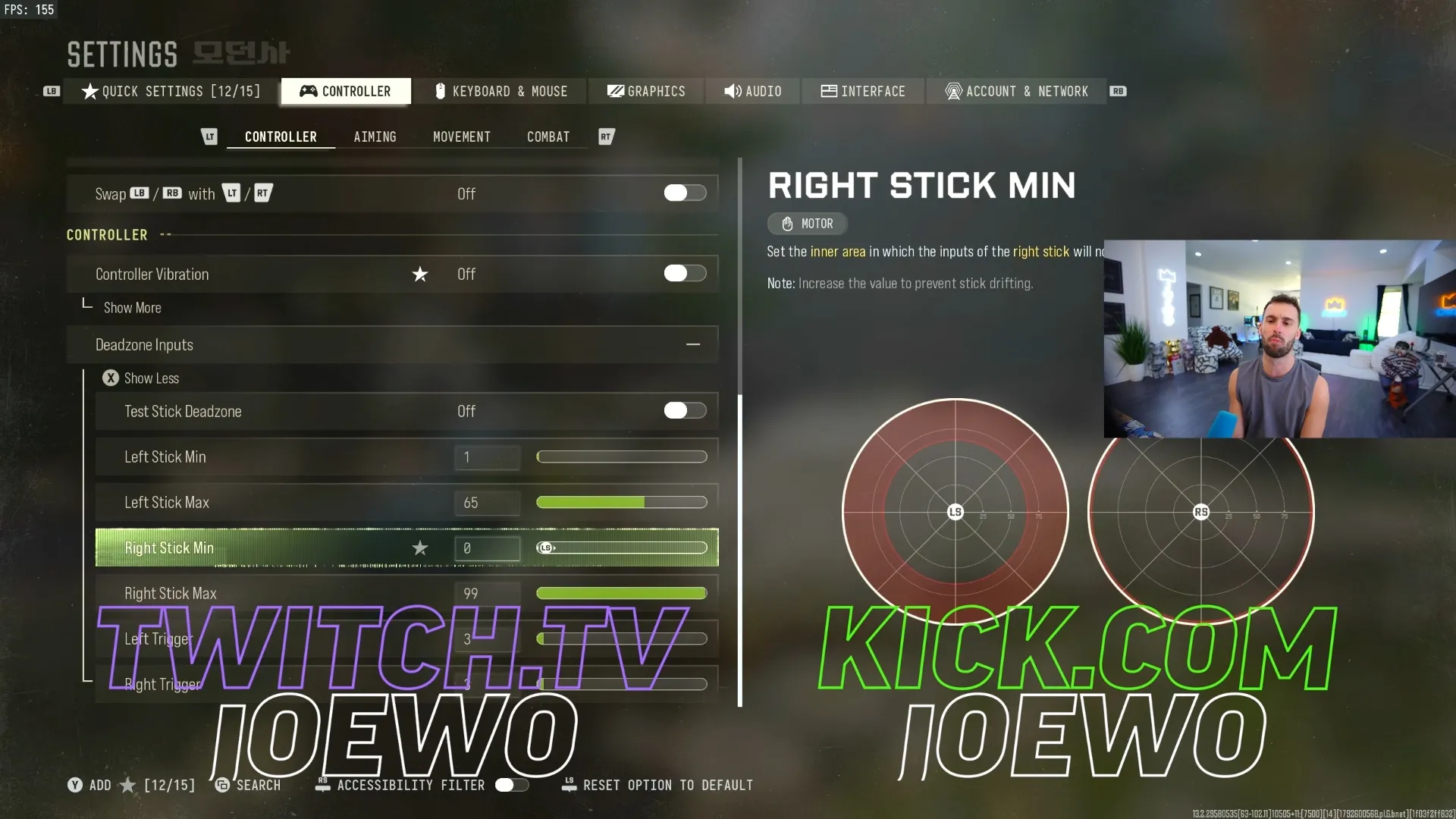
Look for the left-stick minimum and maximum dead-zone options in Controller settings.
Shown at 12:59 in JoeWo’s video.| Controller option | JoeWo's setup |
|---|---|
| Right-stick minimum | 0 |
| Right-stick maximum | 99 |
| ADS multiplier | 0.85 |
| ADS sensitivity transition | Instant |
| Aim response curve | Dynamic |
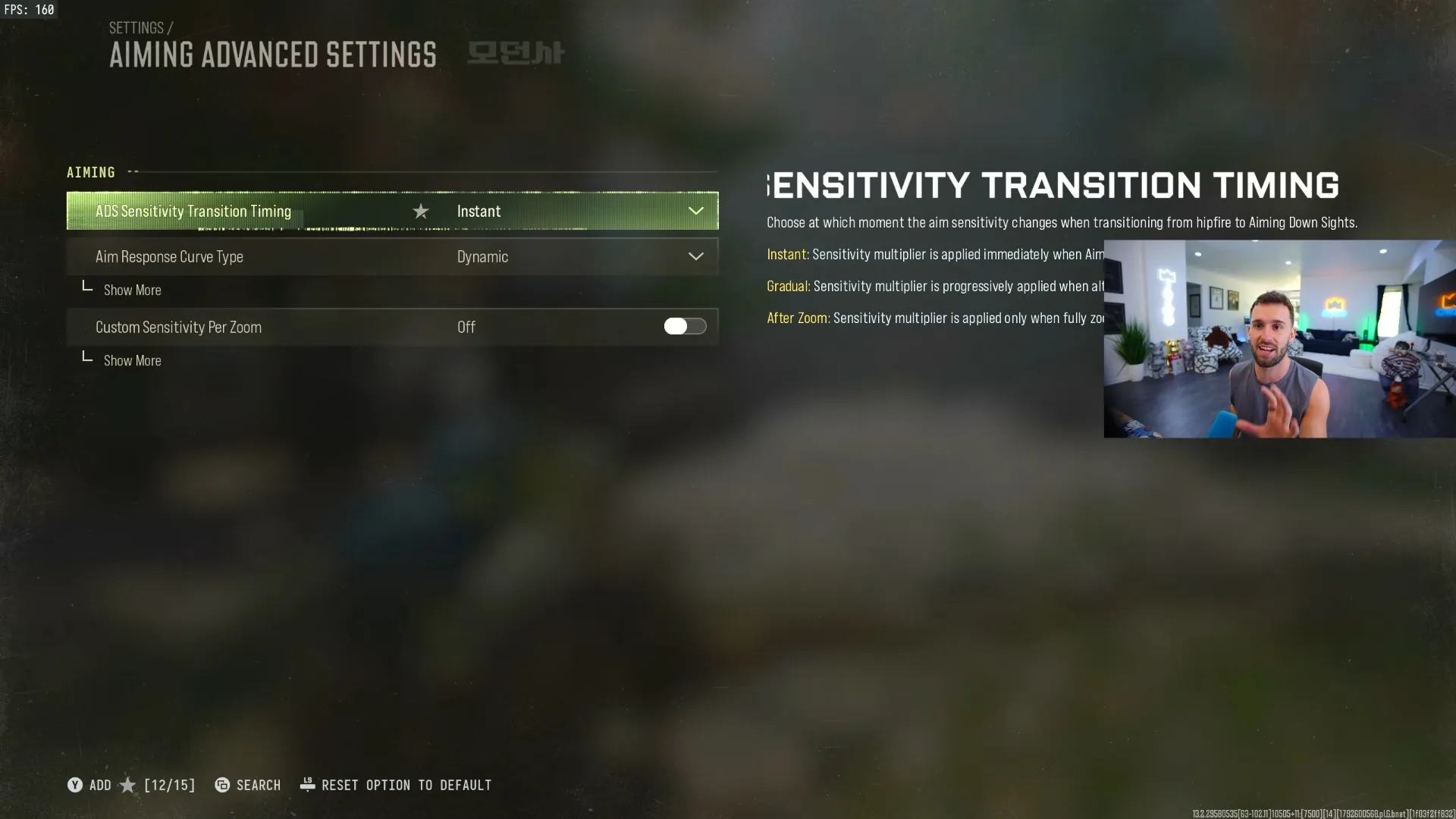
Advanced aiming contains the ADS transition and response curve options.
Shown at 14:49 in JoeWo’s video.Expel also uses Instant and Dynamic, with Target Aim Assist on.
For movement and interaction, Expel chooses Tactical Sprint Assist, disables Corner Slice and Airborne Automatic Mantle, enables Slide Maintain Sprint and selects Prioritize Interact. Turn off the behavior that lets tactical sprint cancel a reload: otherwise, running during a reload can interrupt it just when you need the magazine ready.
Which MW4 DMZ graphics settings suit FPS or visibility?
Choose Apathy's lower-quality approach when FPS is your priority, or JoeWo's higher-detail approach when you struggle to pick out targets in vegetation and dark corners. JoeWo finds higher settings easier for spotting people at distance.
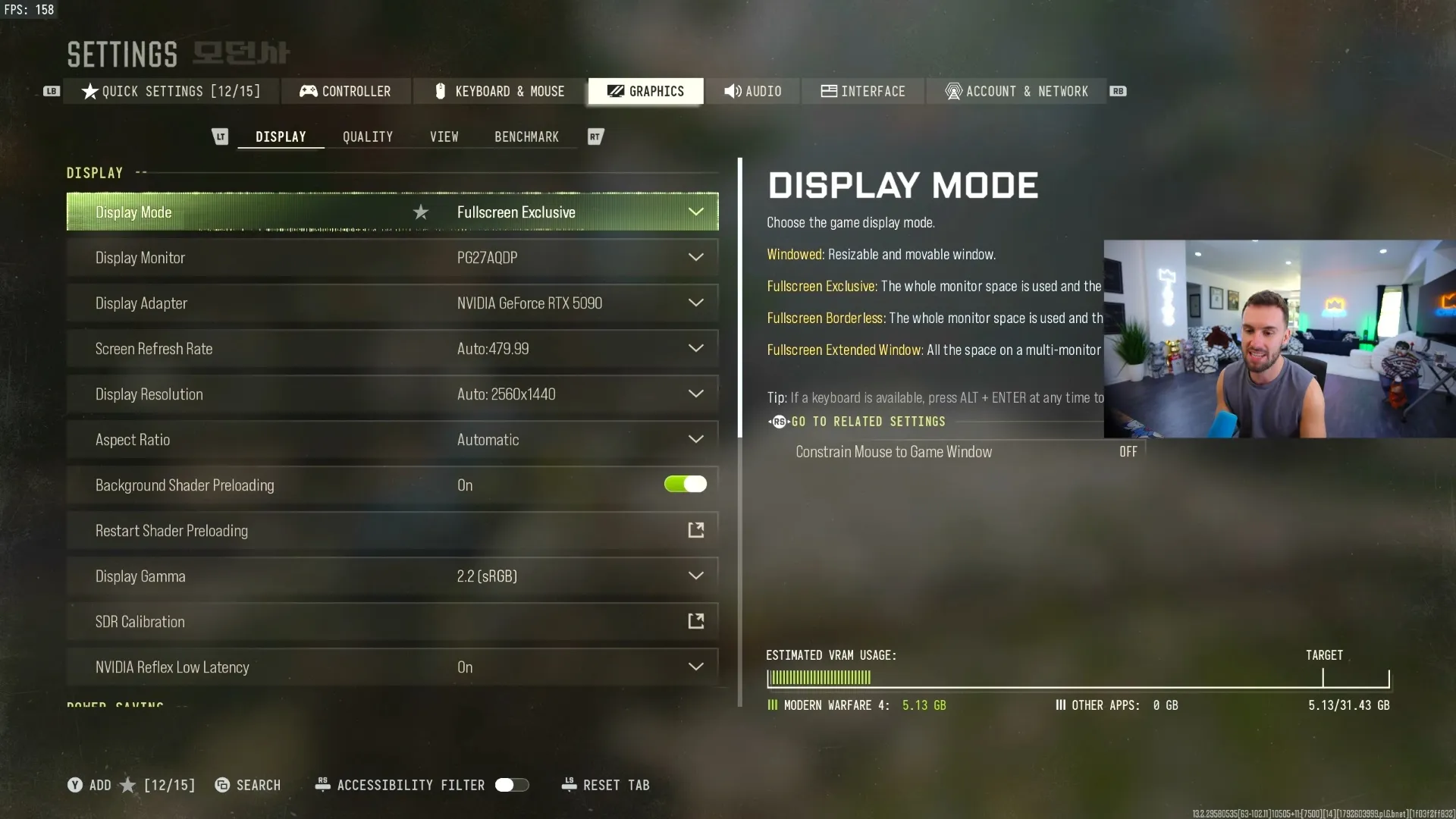
Open Graphics to adjust the display and quality options.
Shown at 18:23 in JoeWo’s video.Apathy's FPS-focused choices are:
| Setting | Value |
|---|---|
| Display mode | Fullscreen Exclusive |
| NVIDIA Reflex Low Latency | On |
| VSync | Off |
| VRAM setting | 85 |
| Texture resolution | Normal or Low |
| Shader quality | Low |
Check that the selected display and refresh rate match your monitor. Apathy is willing to trade some FPS for texture quality on his powerful PC, which is why Normal remains an option alongside Low.
JoeWo disables Frame Generation and Ray Tracing in his graphics setup.
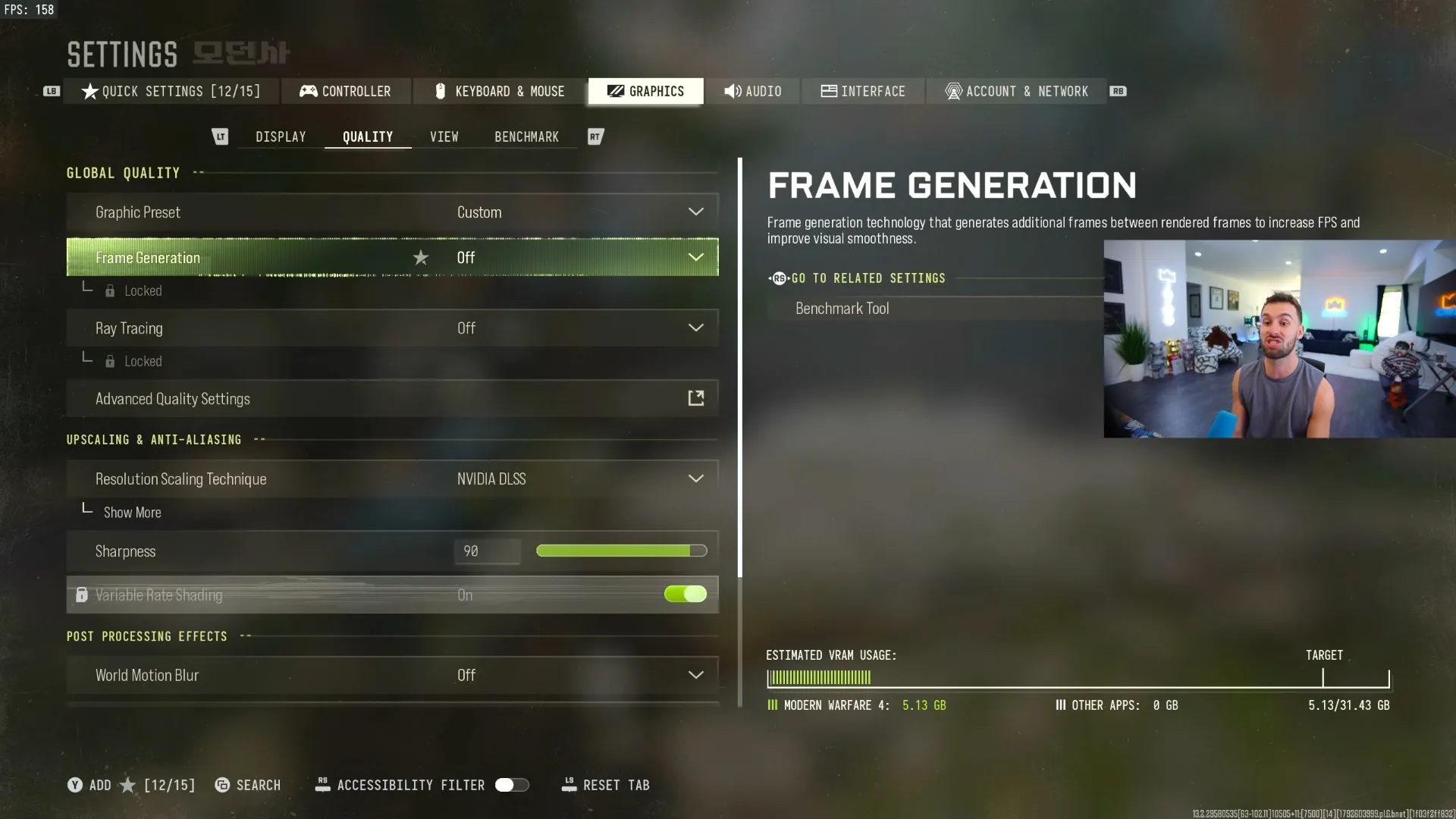
The graphics quality menu contains the Frame Generation and Ray Tracing controls.
Shown at 19:49 in JoeWo’s video.For his visibility-focused setup, JoeWo sets landscape quality to High, uses DLSS Quality with Transformer and sets sharpness to 90. His aim is to distinguish prone players, bushes and trees more clearly.
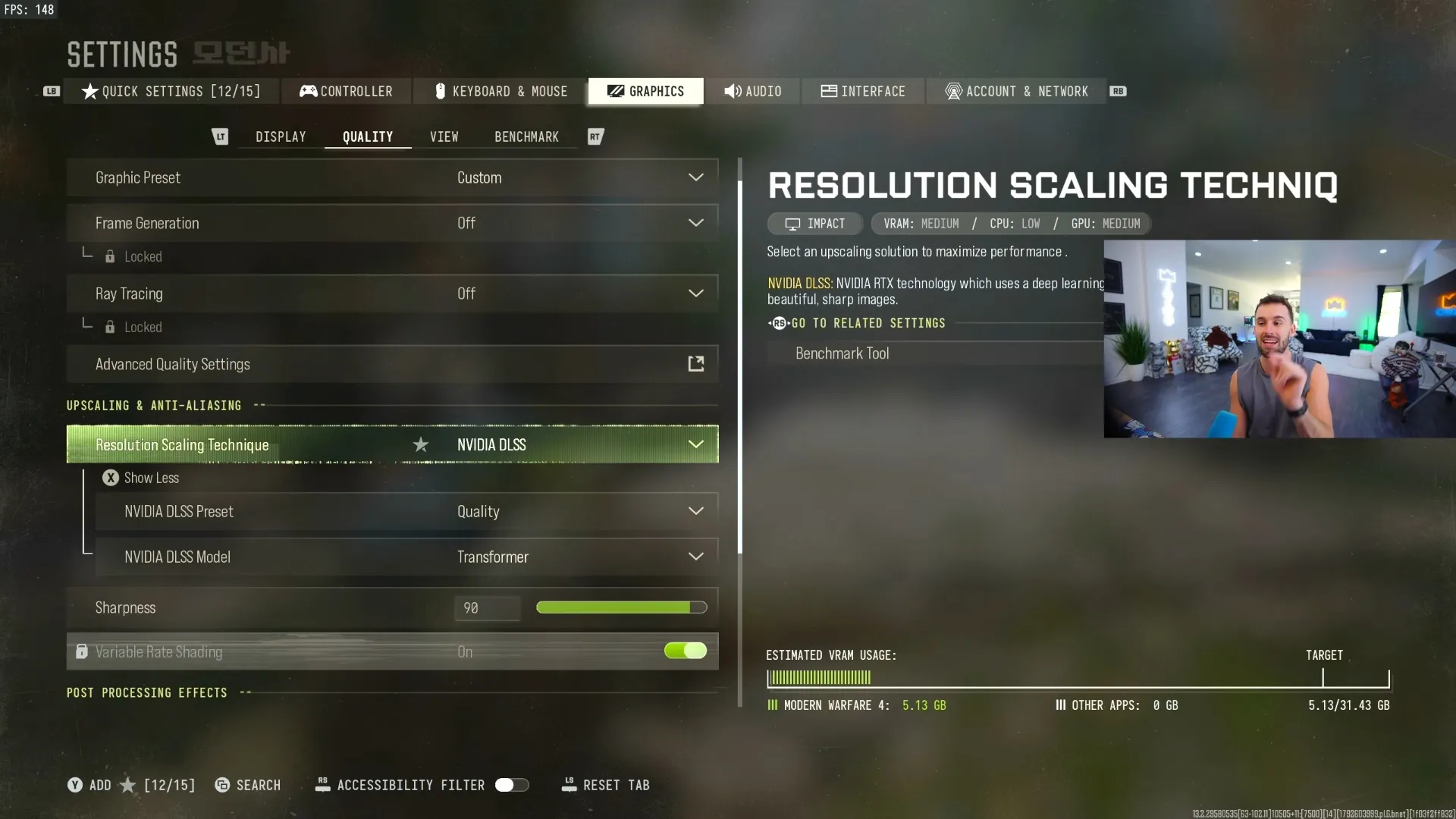
Find the DLSS scaling options in the graphics quality menu.
Shown at 20:38 in JoeWo’s video.What FOV should you use in DMZ MW4 settings?
Use JoeWo's 120 FOV as a close-monitor starting point; try 100, 105 or 110 if you sit farther away on a couch. His 120 choice goes with sitting roughly an arm's length from the monitor. Expel also uses 120 and selects Wide for vehicle FOV.
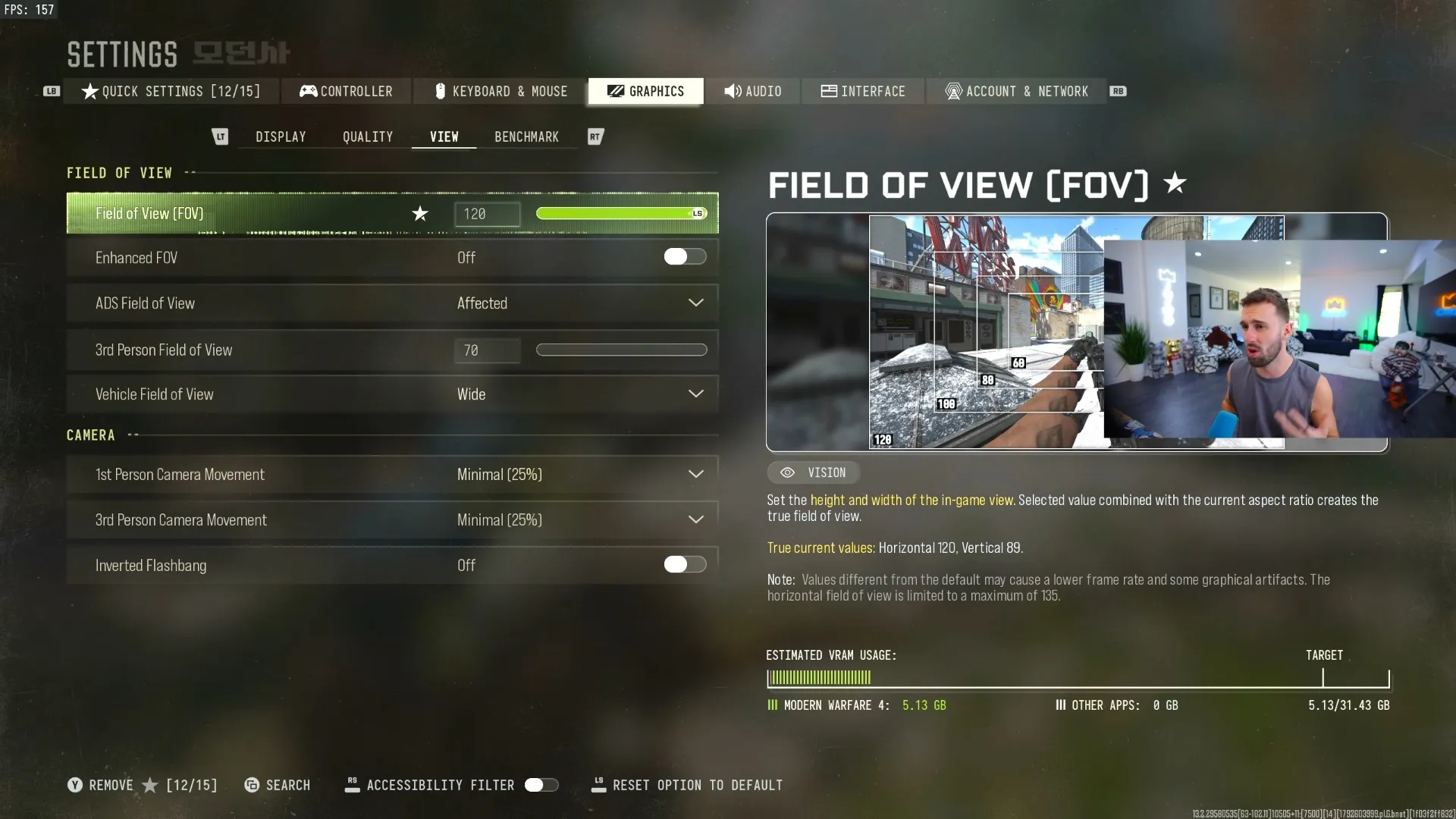
The View menu contains your field of view controls.
Shown at 21:24 in JoeWo’s video.Apathy recommends 110–120 for more advanced DMZ players, while separately recommending no higher than 103–107 for MW4 specifically.
Set first-person camera movement to Minimal, 25%, following JoeWo's preference for less screen shake while sprinting in combat. Expel turns motion blur off.
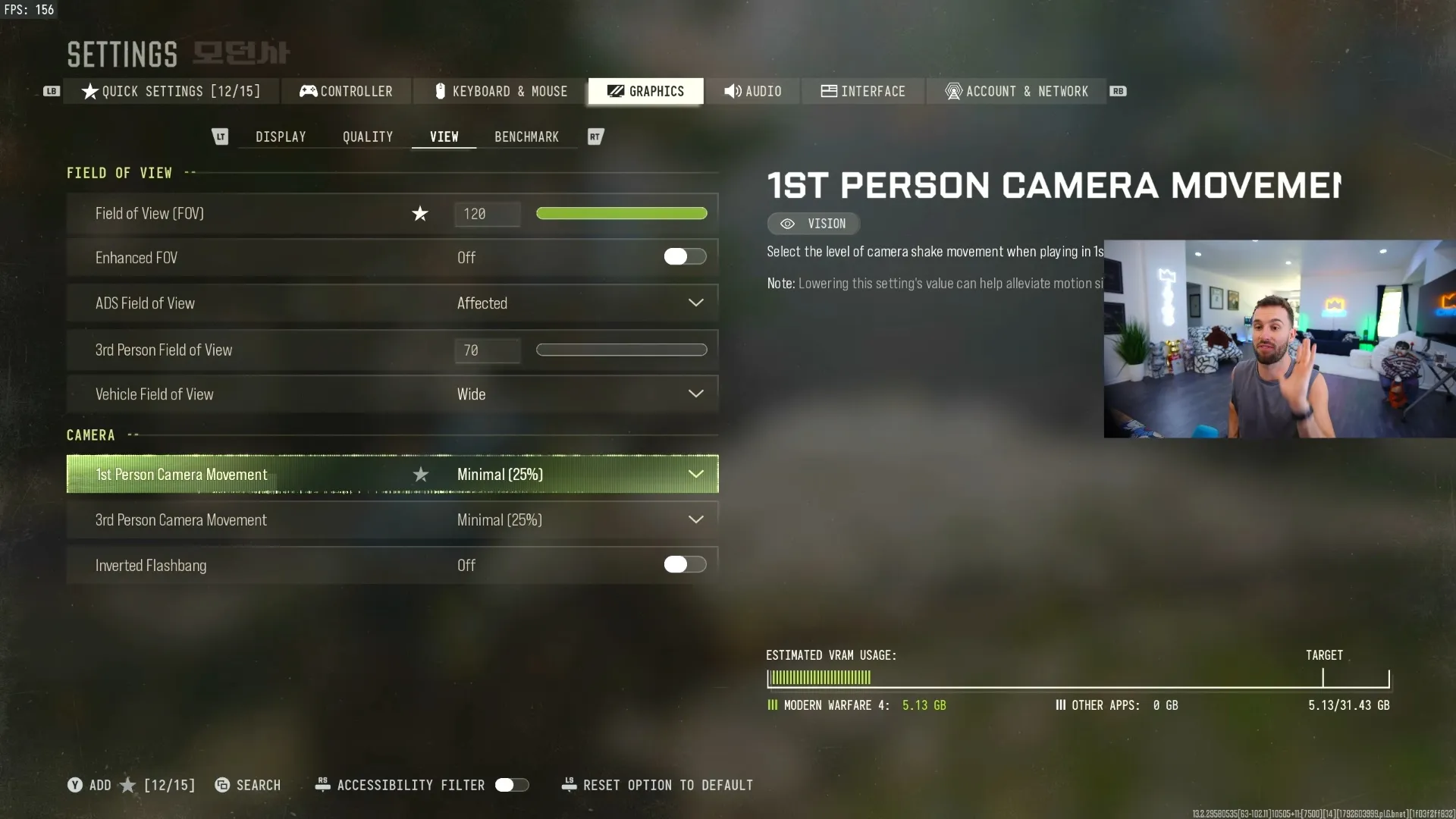
Look for first-person camera movement in View settings.
Shown at 22:58 in JoeWo’s video.Which audio settings should you try in DMZ?
Try JoeWo's Enhanced Headphone Mode if you play with headphones, or Apathy's Home Theater mix as an alternative personal setup. JoeWo also uses asymmetrical hearing compensation; Apathy enables Reduce Ringing in Ears.
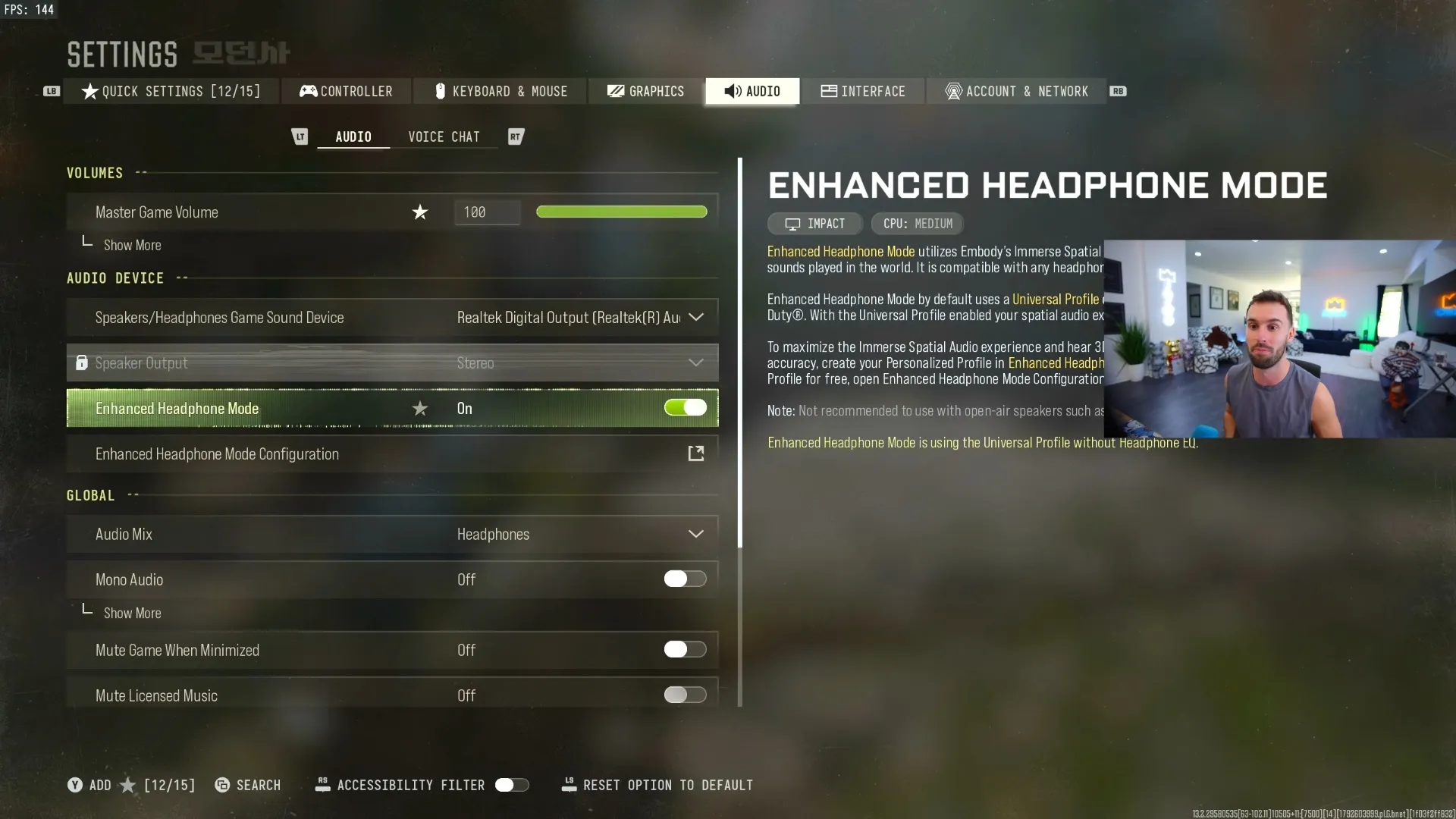
Enhanced Headphone Mode is in the Audio menu.
Shown at 23:24 in JoeWo’s video.Expel's volume choices give you another concrete starting point:
| Audio option | Value |
|---|---|
| Gameplay music | 0 |
| Dialogue volume | About 70 |
| Cinematic music | Minimum |
How do you display MW4 DMZ FPS, ping and packet loss?
Enable FPS, ping and packet-loss telemetry in HUD settings, following JoeWo's setup. He also turns kill cams and hints off.
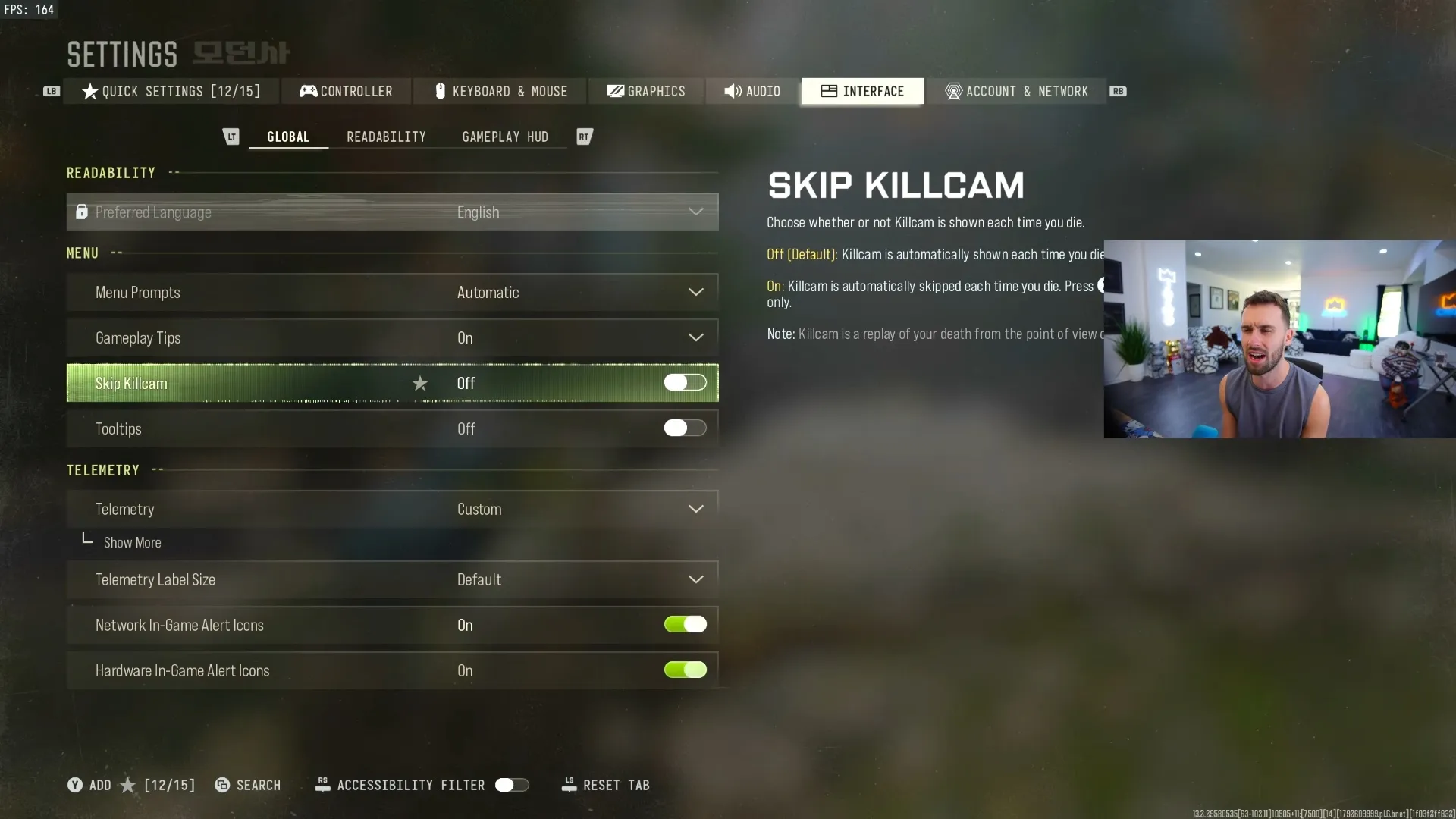
The HUD menu includes FPS, ping and packet-loss display options.
Shown at 24:20 in JoeWo’s video.For color readability, Expel chooses Filter 2 and sets its target to Both under Readability. If the game closes or throws an error, head to MW4 DMZ crashing; for your next run, follow MW4 DMZ tips and get oriented with the MW4 DMZ Hajin map.
FAQ
Instant transition and a Dynamic response curve are shared choices in JoeWo's and Expel's setups. JoeWo pairs them with a 0.85 ADS multiplier.
No fixed FPS increase comes with these personal configurations. Apathy prioritizes lower quality for FPS, while JoeWo favors detail for identifying targets.
Start by trying FOV 100, 105 or 110 when you sit farther from the screen. JoeWo's 120 choice is tied to his close-monitor seating position.
Turn on the HUD telemetry options for your frame rate, ping and packet loss. JoeWo keeps those displays enabled together.